
简介
接上篇,在媒体 SMB 已经准备好的情况下,需要用到一些媒体管理软件来提升使用体验:
-
照片和视频类:Immich,这里不选择 DSM Photo是因为不想依赖不太稳定的黑群晖系统
-
电影电视剧类:jellyfin
开始吧
a. LXC 容器准备
创建容器
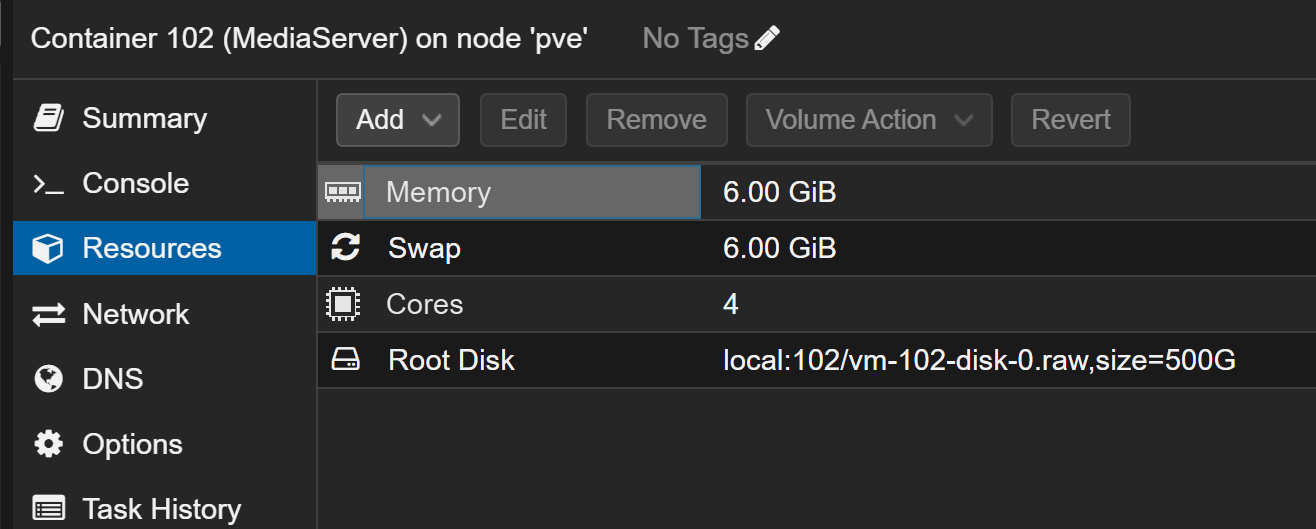
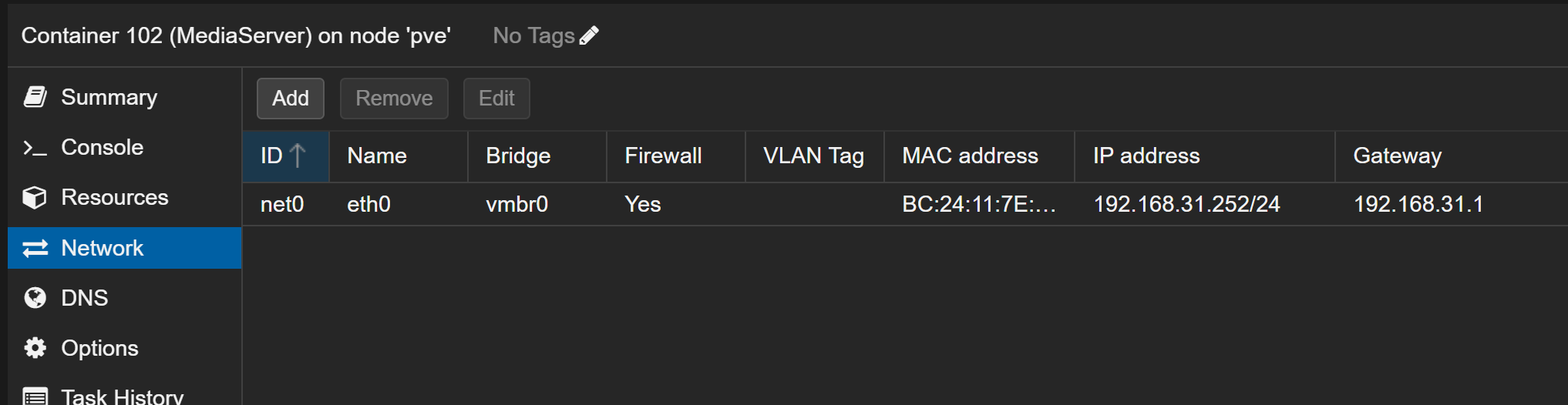
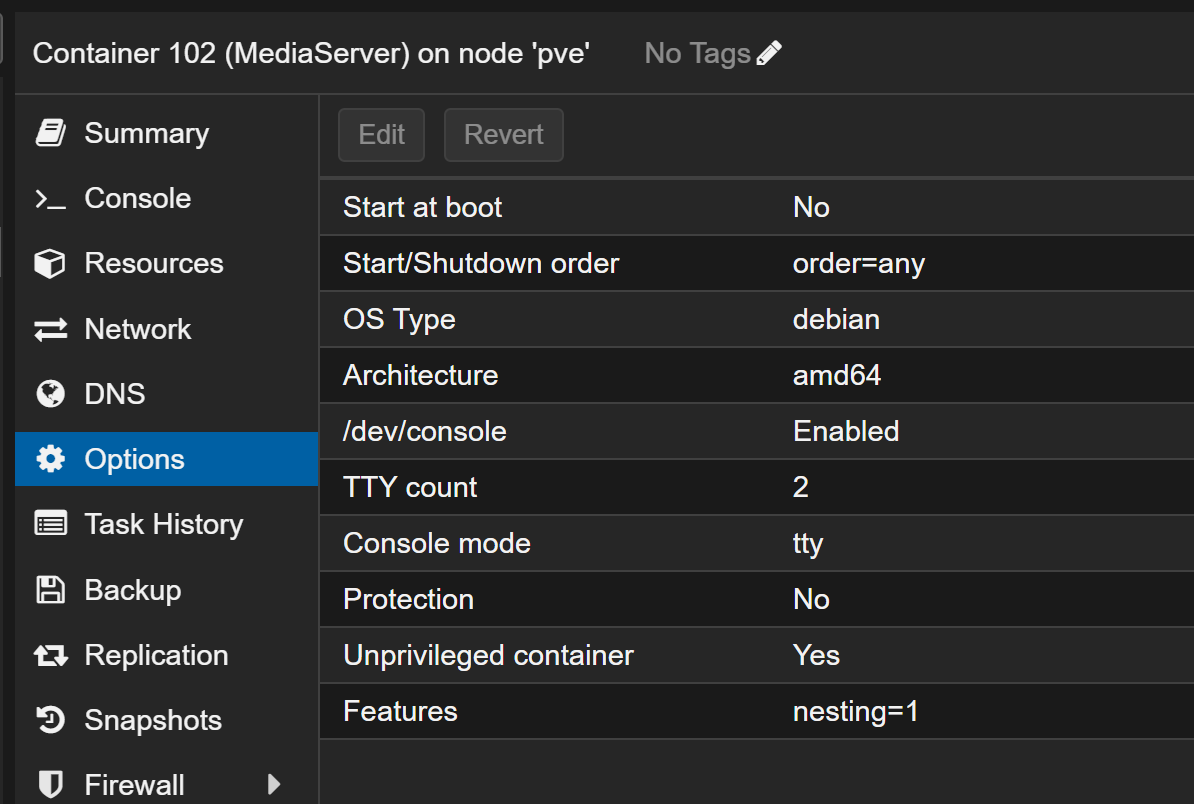
更改时区
shell
date
timedatectl set-timezone Asia/Shanghai
换源
shell
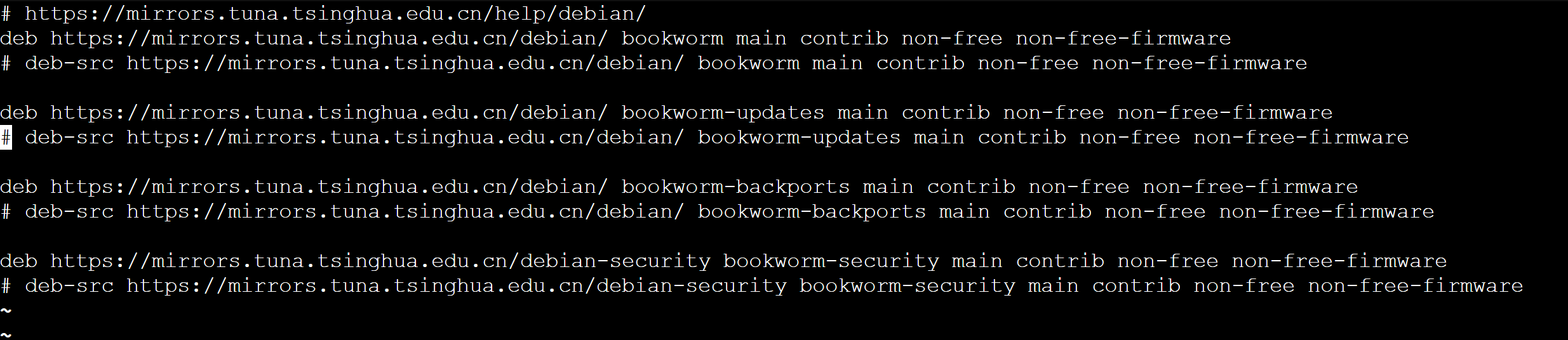
# 把 source 换成清华源
vi /etc/apt/sources.list
text
# https://mirrors.tuna.tsinghua.edu.cn/help/debian/
deb https://mirrors.tuna.tsinghua.edu.cn/debian/ bookworm main contrib non-free non-free-firmware
# deb-src https://mirrors.tuna.tsinghua.edu.cn/debian/ bookworm main contrib non-free non-free-firmware

deb https://mirrors.tuna.tsinghua.edu.cn/debian/ bookworm-updates main contrib non-free non-free-firmware
# deb-src https://mirrors.tuna.tsinghua.edu.cn/debian/ bookworm-updates main contrib non-free non-free-firmware

deb https://mirrors.tuna.tsinghua.edu.cn/debian/ bookworm-backports main contrib non-free non-free-firmware
# deb-src https://mirrors.tuna.tsinghua.edu.cn/debian/ bookworm-backports main contrib non-free non-free-firmware

deb https://mirrors.tuna.tsinghua.edu.cn/debian-security bookworm-security main contrib non-free non-free-firmware
# deb-src https://mirrors.tuna.tsinghua.edu.cn/debian-security bookworm-security main contrib non-free non-free-firmware
shell
# 更新软件源
apt-get update && apt-get upgrade -y

# 安装常用命令
apt-get install vim
安装 docker
shell
# Uninstall old versions
for pkg in docker.io docker-doc docker-compose podman-docker containerd runc; do pt-get remove $pkg; done

# Add Docker's official GPG key:
apt-get update
apt-get install ca-certificates curl
install -m 0755 -d /etc/apt/keyrings
curl -fsSL https://download.docker.com/linux/debian/gpg -o /etc/apt/keyrings/docker.asc
chmod a+r /etc/apt/keyrings/docker.asc

# Add the repository to Apt sources:
echo \
  "deb [arch=$(dpkg --print-architecture) signed-by=/etc/apt/keyrings/docker.asc] https://download.docker.com/linux/debian \
  $(. /etc/os-release && echo "$VERSION_CODENAME") stable" | \
  tee /etc/apt/sources.list.d/docker.list > /dev/null
apt-get update

# 安装 Docker
apt-get install docker-ce docker-ce-cli containerd.io docker-buildx-plugin docker-compose-plugin

# 启动 docker 并设为开机自启动
systemctl start docker
systemctl enable docker

# 配置源
vim /etc/docker/daemon.json

shell
# 重新启动 docker
systemctl daemon-reload
systemctl restart docker
安装 Portainer
shell
# 创建数据卷
docker volume create portainer_data

# 查看数据卷的存储地址
ls -al /var/lib/docker/volumes/
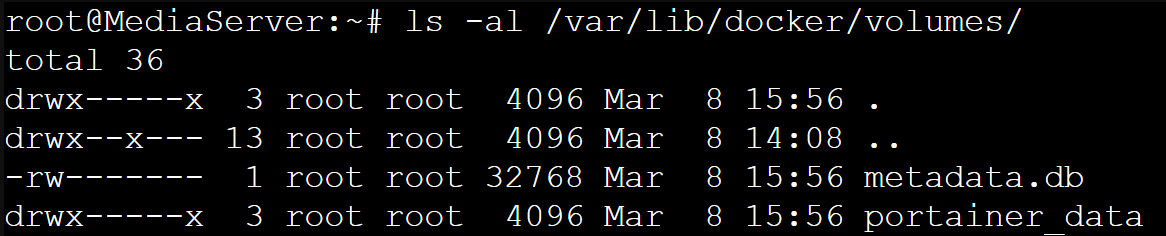
shell
# 拉取 portainer 并运行
docker run -d -p 9000:9000 --name=portainer --restart=always -v /var/run/docker.sock:/var/run/docker.sock -v portainer_data:/data portainer/portainer-ce
Discussion
留言与讨论
想法、补充和不同意见都欢迎。